Using Moonlight Game Streaming from an AtGames Device
Table of contents
- Why do I want this?
- Quick Start
- Detailed Instructions
- Making additional applications available
- Random pointers & troubleshooting
These directions permit the user to run PC based content on the AtGames machine over a network. There is a Quick Start for experienced users and Detailed Instructions for others. This is possible using a non-Windows machine, but these instructions assume Windows. This release is beta/experimental and it should be expected there will be glitches.
Why do I want this?
This will allow you to create a network interface between a PC and the AtGames machine so you can run applications on the PC and control/view them on the machine. This allows the machine to run applications that exceed its internal processing power. Examples (not an exhaustive list) might include: Steam, EpicGames, Amazon Games, GOG, or stand-alone apps/games.
Quick Start
- Install Sunshine/Apollo on PC.
- Edit the
moonlight.confon the USB drive with your PC IP address. - Run Moonlight on the AtGames device.
- Pair the PC by entering the PIN from Moonlight into the Sunshine web browser interface (https://localhost:47990).
Detailed Instructions
-
On the PC you will be using for the integration, go to the Sunshine GitHub releases page. Pick a release (e.g. latest stable version), expand the Assets list and download the
sunshine-windows-installer.exe.Alternatively, you can install Apollo, which is a Sunshine fork and offers many QoL improvements. This guide assumes Sunshine but should work for Apollo as well.
-
Run the Sunshine installer on the PC (ensure that the “run on startup” switch is selected during install–it should be by default).
- On the PC you will be using, go to the Windows Search Bar and type
cmd.- This will open a command prompt window where you will type
ipconfig. - Document the IPv4 address of the network port that is being used to connect to the same network your AtGames device is on. It will look something like this:
192.168.0.183.
- This will open a command prompt window where you will type
- With your USB drive in your PC, navigate to the folder containing the file
moonlight.conf, and openmoponlight.confin a text editor.- Find the line:
#address = 1.2.3.4and edit to read:
address = 192.168.0.183(remove the
#at the front and substitute your PC’s IP address). - Save the file with the edits you have made.
- Find the line:
-
Take your USB drive to the AtGames machine and run the UCE as normal.
- Press
Pair - Document the PIN provided.
- Press
-
On the PC, in your web browser, enter
https://localhost:47990.-
Note that you will see security warnings. You will need to accept/bypass these as the installer uses a self-signed security certificate.
-
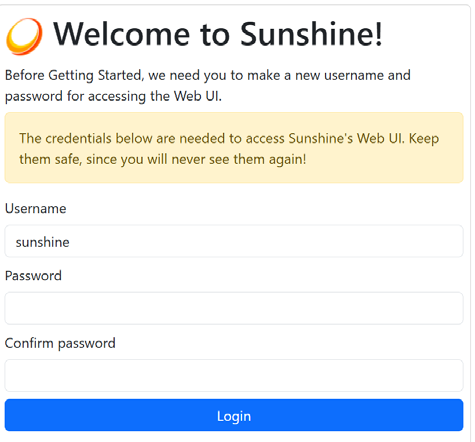
On first run, you will establish your own password for the instance. DO NOT LOSE THIS. Enter and verify the User and Pass of your choosing and click Login.
-
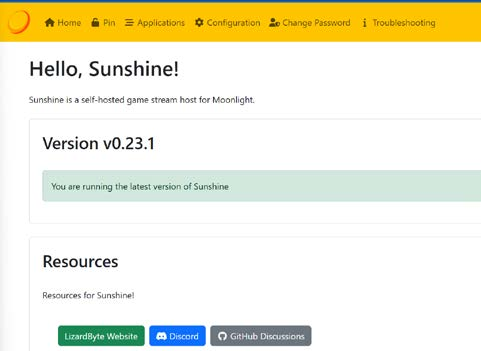
The page will reload as below (note version number may be different).
-
Click on PIN in the top menu bar and enter the PIN from the machine.
The machine and PC are now paired and you should not need to take these pairing steps again.
-
- On the machine, select the
Updatemenu item to see available apps from the PC and launch them.
Making additional applications available
Additional applications that the user may wish to run on the PC and view/control from the machine can be added by telling the Sunshine service where the executable for the application is located on the PC.
-
On the PC, in the Sunshine web interface, click on
Applicationsin the top menu. -
Click “Add New”
-
At a minimum, two fields must be completed.
-
Application Name: How the user desires the application to be shown on the machine – e.g. “EpicGames”
-
Command: The path to the application’s executable on the PC, e.g.
G:\EpicGames\Launcher\Portal\Binaries\Win32\EpicGamesLauncher.exe.
-
-
After adding apps in the Sunshine service, you will need to run the
Updatecommand in the Moonlight menu again to see them.
Random pointers & troubleshooting
-
For support/feedback, find the “Moonlight” group of channels on the Discord server.
-
When using an application on the machine, to toggle between mouse emulation mode and controller, hold P1 Start.
-
When in mouse emulation mode, A is left click and B is right click. Trackball moves the mouse pointer.
-
Unfortunately, at the moment, there is no way to display when mouse emulation mode is active and it can be a little confusing which mode you are in so some patience is necessary.
-
-
If there are no apps showing on the machine after refreshing, check the PC to be sure the Sunshine service is running.
-
In the Windows search bar, type
Services.msc. -
Scroll down to SunshineService.
- If it is not running, Start it.
- If it is running, restart it to try to correct the issue.
-
-
Exiting the game normally should drop you back to the Moonlight interface. To force exit the streaming session, press R1+SELECT+START(Z+REWIND+P1 START).
The application that was being streamed will remain running on the PC in this case. You can select Stop in the Moonlight menu to ask the host to close the running game.