One Saucier

Table of contents
- What it does
- Requirements
- Installation
- Signing in
- The four screens
- Installing content
- Cabinet Link
- Controls
- The menus
- Where One Saucier keeps its files
- Updating One Saucier
- Good to know
- Troubleshooting
- Version history
- Licenses
- Getting help
One Saucier is a downloader and library manager for OnesaUCE content hosted on Archive.org. It runs directly on the AtGames Legends Ultimate cabinet — no PC required — and installs content onto the same drive it is running from. Since v0.2.0 it also ships as Windows and macOS apps that manage a local library and can pair with your cabinet over your home network.
This guide covers v0.4.2, the current release.
One Saucier is a separate application from the OnesaUCE frontend itself. It installs, updates, and removes OnesaUCE’s components; it does not replace RetroFE or launch games.
What it does
- Browse the whole OnesaUCE catalog — required components, 75+ system packs, video packs, and themes, each with its size, available version, your installed version, and a colour-coded status.
- Install whole components, or single games and videos. Opening a system pack or video collection lists its individual titles; install them one at a time and only the bytes for that title are fetched.
- Parallel downloads (up to 8 at once) with pause, resume, and cancel. Interrupted downloads survive a reboot and pick up where they stopped.
- Crash-safe installs — everything extracts to a staging area and is moved into place only when complete, so a power cut can never leave a component half-written.
- Browse your installed library inside a real OnesaUCE theme — the Browse tab renders your collections with the same engine the cabinet uses, animations, music, and game videos included.
- Uninstall packs, videos, and themes; files shared with other installed components are kept automatically.
- Pair a PC or Mac with the cabinet and send content to it over your home network, down to a single game.
- Edit OnesaUCE’s own settings from the Settings screen.
- Self-updating — One Saucier appears as the first row in its own catalog and updates like any other component.
Requirements
| Archive.org account | Required for all downloads. Create one free at archive.org, then sign in from the app’s Settings screen. |
| Cabinet | An AtGames Legends Ultimate running OnesaUCE, and an NTFS-formatted USB drive. |
| Windows | Any 64-bit Windows PC. The install target drive must be NTFS if it is going to be used on the cabinet. |
| macOS | macOS 11 (Big Sur) or later. The app is a universal binary — Apple Silicon and Intel both run natively. |
OnesaUCE and One Saucier will only run from an NTFS drive. exFAT and FAT32 drives cannot hold the install, and FAT32 cannot hold the biggest packs at all: its 4 GB per-file ceiling is smaller than base_assets. Since v0.4.2 the app says so up front — Home shows a DRIVE FORMAT WARNING naming the actual filesystem, and a download whose largest file cannot fit is refused before it starts, naming the pack and the size, instead of failing partway through a multi-hour download. If One Saucier is started from an unwritable or non-NTFS drive on the cabinet, it shows a full-screen explanation and exits cleanly rather than failing silently.
Installation
Every release ships one download per platform. Grab them from the latest release.
Cabinet (AtGames Legends Ultimate)
- Download
one_saucier_v0.4.2_cabinet.zip. - Extract it to the root of your OnesaUCE USB drive, so that
one_saucier.uceand theone_saucier/folder sit side by side at the drive root. Replace any older copies — your sign-in and settings are kept. - Insert the drive, boot the cabinet, and select One Saucier from the games menu (BYOG section).
After the first install you never need to do this again by hand — the app updates itself from inside the Catalog. See Updating One Saucier.
Windows
- Download
one_saucier_v0.4.2_windows.zip. - Unzip it anywhere and run
one_saucier.exe. Everything it needs is in the folder, and its settings, logs, and downloads stay next to the exe. - Point it at the folder or drive that holds (or will hold) your OnesaUCE files, or skip straight to pairing with the cabinet.
macOS
- Download
one_saucier_v0.4.2_macos.tar.gzand unpack it. - Move
one_saucier.appwherever you like — Applications works — and open it. See the first-launch note below. - The app keeps its settings, logs, and downloads in
~/Library/Application Support/one_saucier.
Because the app is not signed with a paid Apple certificate, macOS shows a security warning the first time you open it. This is expected and you only have to get past it once.
On macOS 15 Sequoia and newer:
- Double-click the app. When macOS says it cannot be opened because Apple cannot verify it, click Done — do not click “Move to Trash”.
- Open Apple menu ▸ System Settings ▸ Privacy & Security.
- Scroll to the Security section, find the line saying “one_saucier” was blocked, and click Open Anyway.
- Confirm with Touch ID or your password, then click Open Anyway once more. The app launches and will not ask again.
On macOS 11 Big Sur through 14 Sonoma, the quicker method works instead: right-click (or Control-click) the app and choose Open, then Open again.
If you see “one_saucier is damaged and can’t be opened”, that is the download-quarantine flag, not actual damage. Open Terminal, paste the line below (adjusting the path if the app is not in Applications), press Return, then open the app normally:
xattr -dr com.apple.quarantine /Applications/one_saucier.app
Signing in
Open Settings, select the email field, and enter your Archive.org credentials — with the on-screen keyboard on the cabinet, or by typing on the desktop builds. Validate checks them against Archive.org and stores them with the app’s settings, so you stay signed in across launches.
On the cabinet, an on-screen keyboard appears:
| Control | Action |
|---|---|
| Stick | Move the keyboard cursor |
A | Type the highlighted key |
P1 / START | Enter — advance from email to password, then submit |
X | Shift |
B | Space |
C | Backspace |
REWIND | Back to the email field, then close the keyboard |
MENU | Clear email / clear password / cancel sign-in |
X cycles Shift through three states — off, once (the next key only), and caps (sticky). Shifted, the number row types !@#$%^&*() and the symbol keys give a second bank of [ ] { } < > \ | ; , and ~ ' ", so every printable character except the backtick is typeable.
The desktop builds have no on-screen keyboard — you just type into the fields.
The four screens
One Saucier has four tabs — Home, Catalog, Browse, and Settings. Push the stick left/right (or use the arrow keys) to move between them from anywhere on a screen; push up past the top of a screen to land on the tab strip itself.
Home
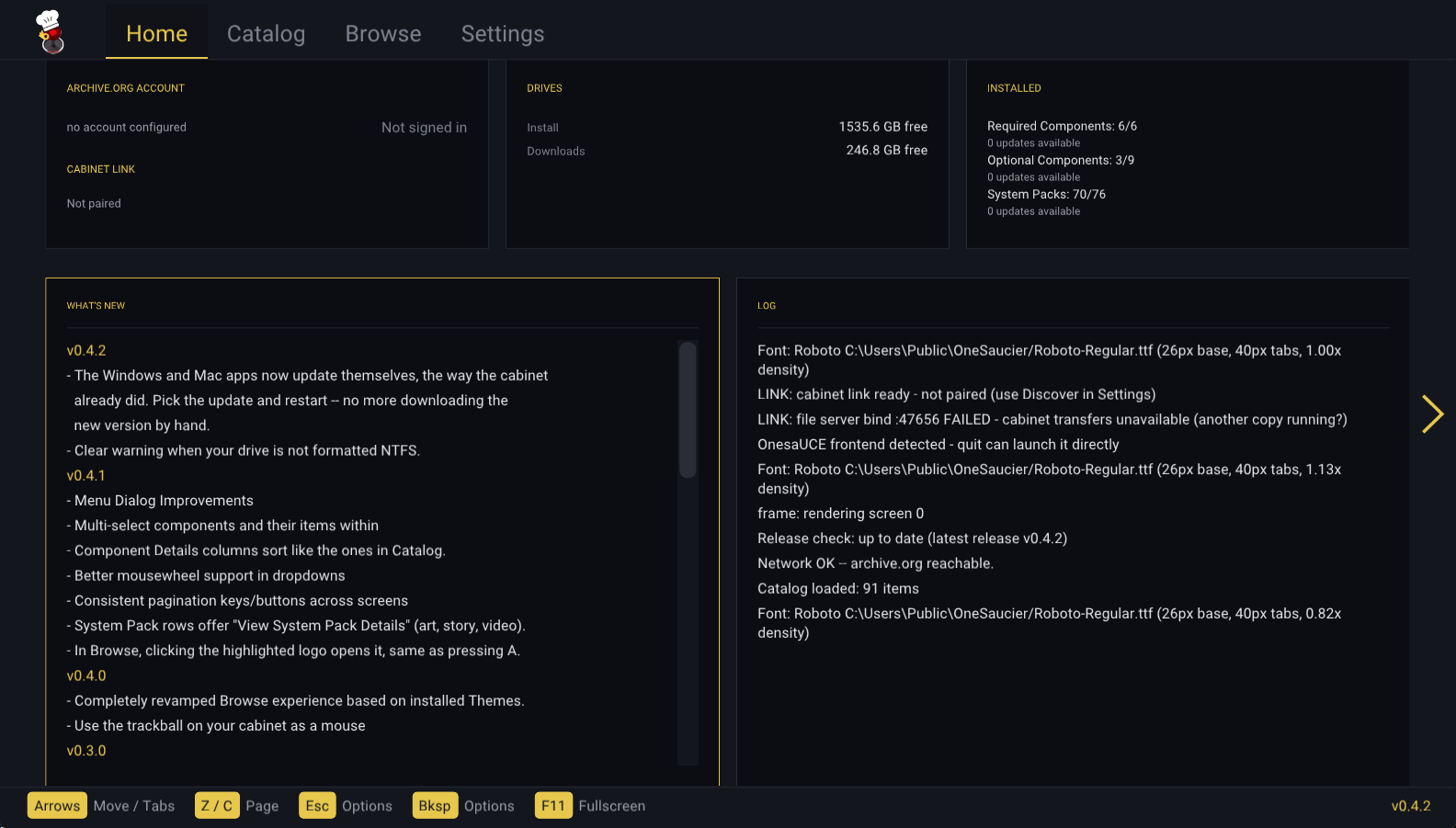
Home is the status page. Its tiles are:
- ARCHIVE.ORG ACCOUNT — your email and a right-aligned Signed in / Not signed in, plus a CABINET LINK sub-section showing the current pairing status (Linked to … / Ready - not linked / Disabled).
- DRIVES — free space. On the cabinet this is one OnesaUCE row; on desktop it is two, Install and Downloads.
- INSTALLED — a count and update tally for Required Components, Optional Components (videos and themes), and System Packs. The Required header turns red while that group is incomplete. Below a separator it appends live rows when there is something to report: Current Job (Downloading … / Installing … / Paused / Ready to Install / Failed), Downloads (a tally such as 2 downloading, 1 installing, 1 paused … (+3 queued)), and App Update.
- WHAT’S NEW — the release notes for every version, right on the cabinet.
- LOG — a live view of the session, following the tail until you scroll up.
Rows in every tile highlight and click, and Z / C page through the long ones.
Catalog
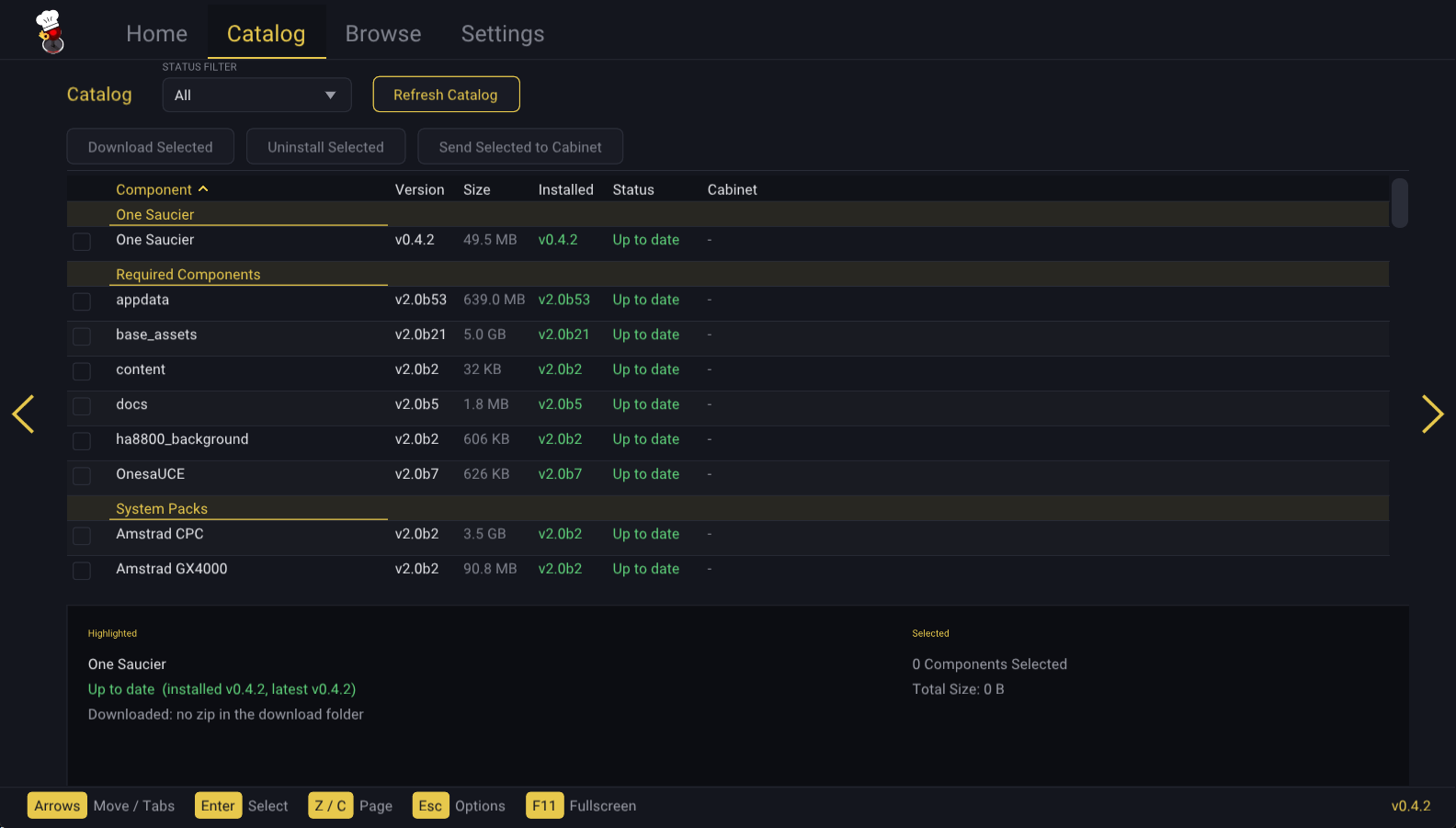
The Catalog is the install screen. Components are grouped, in this order, under One Saucier (the app’s own row), Required Components, System Packs, Videos, and Themes.
Columns are Component, Version (available), Size, Installed, and Status, behind an unlabelled checkbox column. On Windows and macOS a sixth Cabinet column sits at the far right, showing that component’s state on the paired cabinet in the same words as your local Status — plus Transferring while you are sending it and Removing while it is being uninstalled there. It reads - when no cabinet is paired.
Every column header is a control: walk onto it with the stick or arrows (or click it) and press A / Enter to sort by that column; press again to reverse. Components stay inside their groups while sorted, and version columns sort by real version order, so b10 comes after b9.
The status column tracks every state a component can be in:
| Status | Meaning |
|---|---|
| Up to date | Installed and current |
| Update Available | Installed, but a newer version exists |
| Not installed | Available to download |
| Downloading / Installing | In flight right now |
| Queued for Download | Waiting for a parallel-download slot |
| Paused | Stopped by you; resumes where it left off |
| Ready to Install | Downloaded but not yet installed (kept across restarts) |
| Removing | Being uninstalled |
| Failed | The last attempt did not complete |
| Pending Restart | A One Saucier update is installed; restart to run it |
The STATUS FILTER dropdown beside the title narrows the table to All (the default), Not up-to-date, any single status from the table above, or — on a desktop build — Not on cabinet, to see only what the cabinet is missing. A Refresh Catalog button sits next to it.
Under the table sits a split card. Highlighted describes the focused row: its progress bar and Time Remaining while a job runs, its version line, the Component Base size and whether it is installed, an N / M games installed count, and a Downloaded: line telling you what is in your download folder (no zip in the download folder, complete, N% (partial), older version, or larger than the catalog size (stale)). When focus is on a header control instead, it describes that control. Selected shows N Components Selected and their Total Size.
An installed pack that is only partly filled in shows its item count next to the version, e.g. v2.0b4 (3/1261).
Component Details
Press A on a system pack or video pack and choose View Individual Components to drill in. Columns are Game Name (or Video in the Videos group), Download Size, Installed, On Cabinet, and Status, behind the same checkbox column as the Catalog. Installed and On Cabinet read Yes or No. Since v0.4.1 the headers sort exactly like the Catalog’s, and the same split Highlighted / Selected card sits below.
Per-item statuses are Not Installed, Up-to-Date, Requires Update, Queued, Downloading, Installing, Transferring, Removing, and Failed, and the STATUS FILTER dropdown offers All, Not up-to-date, Not on cabinet (desktop), or any single status.
Pressing A on an item opens a dialog titled <component> : <item> offering Download and install (or Re-download and reinstall, or Remove from download queue when it is queued), Uninstall, Transfer to cabinet, Remove from cabinet, and View Game Details / View Video Details.
The Component Base. Every collection has shared files — metadata, system artwork, attract videos — that all of its games need. One Saucier installs that Component Base once, the first time you install anything from the collection. Every game after that costs only its own few megabytes. The pane under the table tells you the Component Base’s size and whether it is installed yet.
A few collections cannot be split this way — ScummVM, Daphne, and Emerson Arcadia 2001 keep their game data outside the usual per-game layout, so they install as whole packs only and Component Details is disabled for them.
Browse
Rebuilt in v0.4.0. Browse is no longer a list view — it is a full-screen, live OnesaUCE theme.
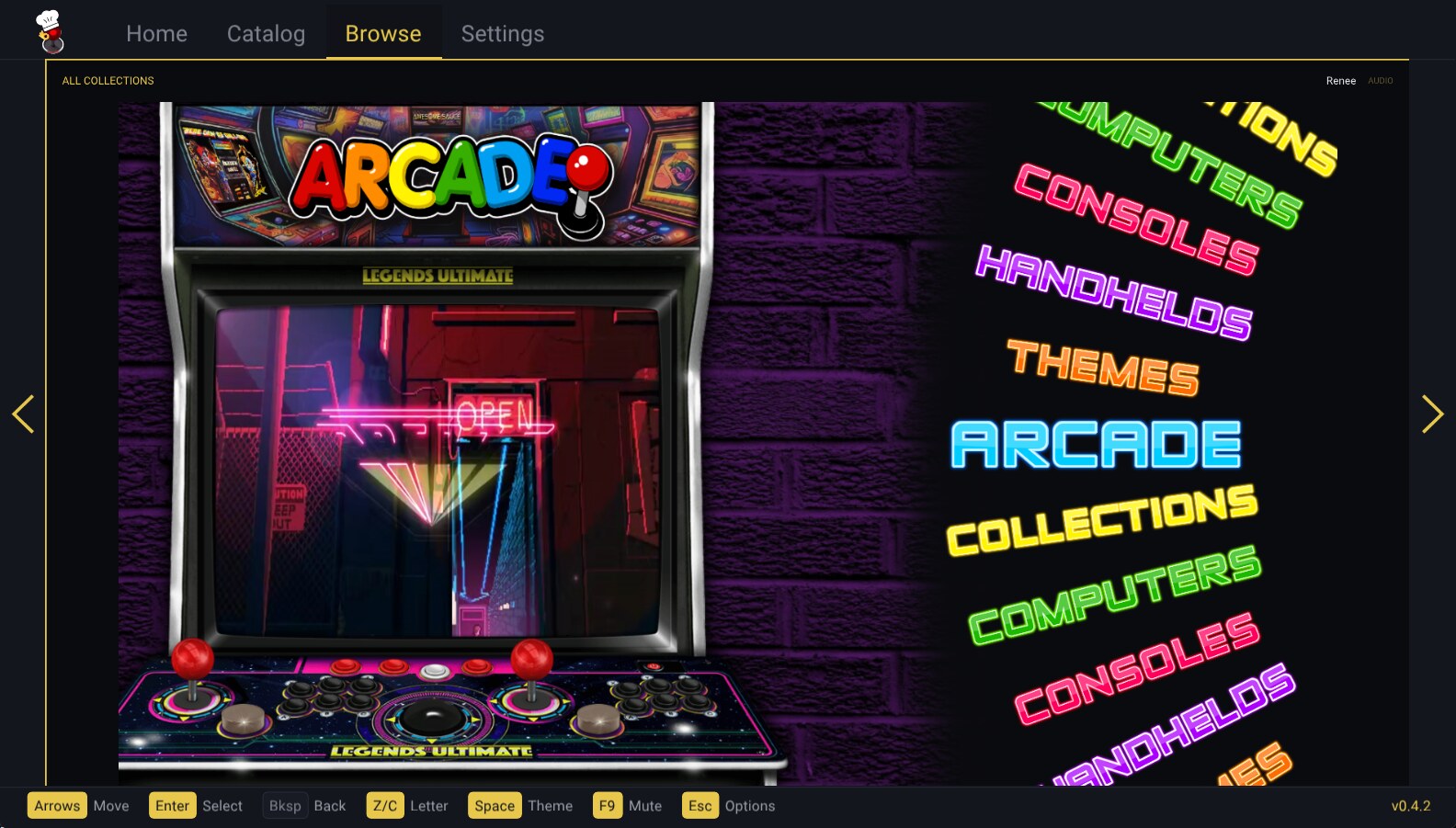
The Browse tab renders your installed library inside a real cabinet theme, drawn by a port of the same RetroFE layout engine OnesaUCE runs: wheels, per-selection artwork and video, the theme’s own authored animations, fonts, sounds and music, splash intros, and collection drill-down. What you see is what the cabinet shows.
Across the top sits a breadcrumb of the collection you are in with a row of depth pips, the running theme’s name on the right, and an AUDIO / MUTE indicator in the corner. Browse opens on the theme your cabinet is actually configured to use.
- Arrows / stick move through the wheel; a theme’s authored wheel direction is honoured, so horizontal-wheel themes step with Left/Right and vertical ones with Up/Down.
- Enter /
Aopens the highlighted item — or, since v0.4.1, just click the highlighted logo with the mouse or trackball. - Backspace /
REWINDwalks back out of a collection. Z/Cjump by starting letter.Xon the cabinet,Spaceon desktop opens the theme picker, which lists every installed theme with its logo, a rendered thumbnail of its layout, and a live preview video of the theme playing in the thumbnail slot. Choose one to apply it. You can also drill into the THEMES collection on the wheel and pressAon a theme row to switch to it, exactly as the cabinet does.Yon the cabinet,F9on desktop mutes and unmutes. The choice sticks across theme changes, tab switches, and detail views.
Changing the theme here changes what One Saucier shows, not what your cabinet uses. The Browse theme is a per-session choice inside the app. To change the theme the OnesaUCE frontend itself boots into, use Settings ▸ ONESAUCE ▸ DEFAULT THEME — that is the only control that writes the theme into OnesaUCE’s settings.conf.
Opening a game gives you Game Details — its file, collection, sub-collections, source pack, install status, story text, a tile for every piece of artwork the drive actually has (front art, logo, screen title, screenshot, bezel, LED/LCD marquee), and a playable video tile with play/pause, 2-second skip, mute, and fullscreen. A clip in the Jukebox collection opens as Video Details instead, and View Collection Details in the menu describes the collection you are standing in — its artwork, its story file, and its video when it ships one.
While a details view is open the theme behind it pauses and mutes; closing it restores both, and the wheel returns exactly where you left it. A video you open yourself always starts audible at full volume regardless of what the theme was doing.
Theme tags
The picker labels every theme with how its layout is authored:
| Tag | Meaning |
|---|---|
| XML | The theme ships a layout.xml — the normal case |
| LUA | The theme ships a layout.lua skeleton, from which One Saucier resolves the real XML |
| ERR | The theme folder has neither, so it renders an error card |
A theme also shows its version, or no version when it ships none. A broken theme is still listed, still selectable, and still applicable — it is labelled (layout error - runs its error card), never hidden. If a theme unexpectedly fails to load when you apply it, One Saucier rolls back to the theme you were using and the collection you were in, rather than leaving you on a half-loaded screen.
Settings
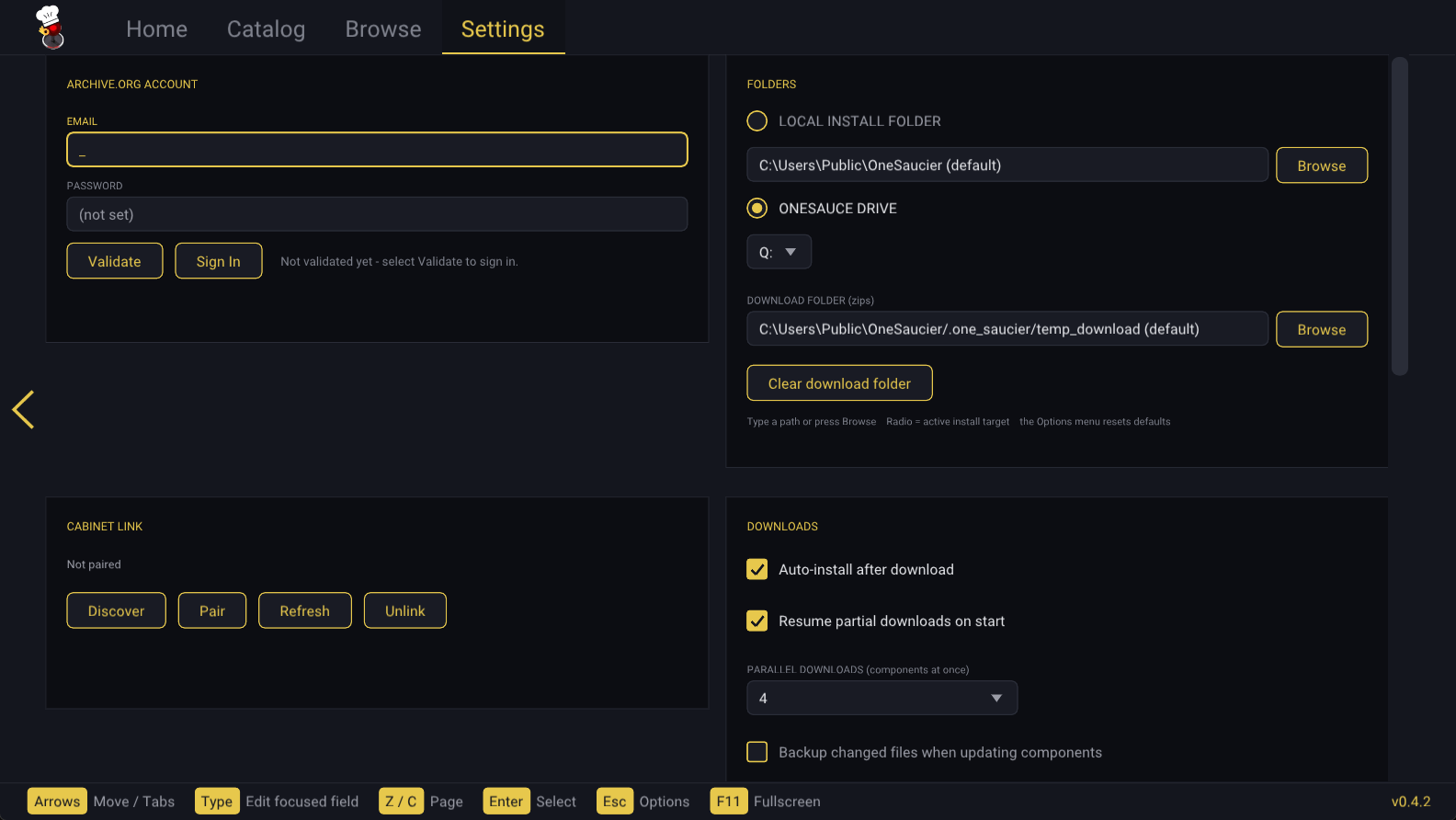
Settings is a grid of cards — two per row in the horizontal layout, a single column in the vertical one — in this order:
ARCHIVE.ORG ACCOUNT — EMAIL and PASSWORD fields (the password is masked, and reads (not set) when empty), a Validate button, and a Sign In / Sign Out button whose label follows your state.
FOLDERS (desktop only) — a radio pair choosing where the app installs and scans: LOCAL INSTALL FOLDER, or ONESAUCE DRIVE, chosen by letter from a dropdown of mounted drives. Both stay configured; the radio picks which one is active. A saved-but-missing letter still lists, as X: (not present). Below that sits DOWNLOAD FOLDER (zips) and a Clear download folder button.
Since v0.4.2 the two path boxes can be typed into as well as browsed — handy for a long path or a network share. Type and press Enter, or walk off the field and what you typed is kept; Esc puts it back. A Browse button beside each box still opens the folder picker. A typed path that is not an existing folder is refused and the old one restored, with the reason in the log, and an empty box means “use the default”.
Warnings appear live under the drive control and re-check every couple of seconds:
drive not present
this drive is exFAT — OnesaUCE and the cabinet require an NTFS-formatted drive / reformat it as NTFS in Windows (outside One Saucier) before using it here
CABINET LINK — on desktop: Discover, Pair / Re-pair, Refresh, and Unlink, plus the PIN field while pairing. On the cabinet: the link status, Cabinet IP, Refresh, Disconnect from PC / Connect to PC, and Unlink. See Cabinet Link.
DOWNLOADS
| Setting | Default |
|---|---|
| Auto-install after download | On |
| Resume partial downloads on start | On |
| Parallel downloads (components at once), 1–8 | 4 |
| Backup changed files when updating components | Off |
| Keep downloads (desktop only) | Keep the newest of each component |
Keep downloads also offers: keep for 7 / 30 / 90 days, keep the folder under 5 / 20 / 50 GB, or delete downloads after installing. A download still in progress is never removed, and Clear download folder is refused while jobs are running.
SCREEN SAVER — Enable screen saver (downloads keep running), on by default, and Minutes of inactivity before it starts, default 10, adjustable from 1 to 60.
ORIENTATION (called THEME before v0.4.1) — Horizontal, the classic landscape 1920×1080 layout, or Vertical, a 1080×1920 portrait layout for rotating-monitor and pinball cabinets. On desktop the window reshapes to fit your screen; in fullscreen and on the cabinet the picture letterboxes unless the panel is rotated to match.
ONESAUCE — edits OnesaUCE’s own settings.conf directly, in two sub-sections. Settings Tweaks holds the Legends Pinball Micro rotation fix. OnesaUCE Settings holds: remember the last highlighted menu entry, log output from the game launcher, enable video playback, auto-scan collections on startup, the default theme (a dropdown of your installed layout folders), video loops (0 = continuous), seconds before Attract Mode (0 = off), seconds between Attract Mode items, and default video volume.
The OnesaUCE rows stay locked until the appdata and base_assets components are installed — there is no settings.conf to edit before that, and the card says so. The starting collection is kept on Main automatically, which is the same rule the Companion app applied.
Installing content
A whole component
Move onto the row and press A / Enter. A dialog titled <component type> : <component> confirms the download and, on desktop with a paired cabinet, offers to send it there. Pick several components and they queue up: downloads run in parallel (up to your configured limit) while installs run one at a time in the background.
A single game or video
Open the pack’s Component Details, move to the game, and press A. Only that title’s files — plus the collection’s Component Base the first time — are range-downloaded from the archive, checked against their stored size and CRC32, and committed through the same staged install path as everything else.
Individual downloads queue exactly like component downloads: asking for one while another is running marks the row Queued and it starts when the slot frees. Queued rows offer Remove from download queue, and the menu can clear a component’s whole item queue at once.
Several at once
New in v0.4.1
Both the Catalog and Component Details have a checkbox column on the left. Push the stick LEFT to enter the checkbox lane, A to toggle, or click the box with the mouse or trackball. Checked rows stay marked in blue until you clear them.
Three pills at the top of the screen act on everything you have checked: Download Selected, Uninstall Selected, and Send Selected to Cabinet (desktop only). They stay grey until something is checked. Batches silently skip rows the action cannot apply to — already-downloaded, not-installed, One Saucier’s own row — and log a done/skipped tally when they finish. Uninstalls and cabinet transfers drain one at a time. The same three entries appear in the Menu.
Changing the Status filter clears your marks; re-picking the value already selected does not.
Uninstalling
Optional components — system packs, videos, and themes — can be removed from the Catalog: select the row, open its dialog, pick Uninstall, and confirm (it is a two-step confirmation). Required base components never offer it.
Removal is careful about shared resources. Anything another installed component also uses, and everything in the collections _common pool, is kept, and when in doubt files are left in place. New installs record a file manifest so removal is exact; components installed before this feature existed fall back to their downloaded zip’s file list, or to the collection folder for game packs.
Individual games and videos can be removed the same way from Component Details, and removal respects other components’ claims on the same files.
Cabinet Link
Cabinet Link pairs a Windows or macOS copy of One Saucier with the copy running on your cabinet, over your home network, so you can download at your desk and install from the couch.
To pair:
- Run One Saucier on both machines, on the same network.
- On the PC, open Settings ▸ Cabinet Link and press Discover. The PC probes the local network — it tries the local broadcast address, the global broadcast address, and a direct unicast to any host it already knows, since some routers filter broadcast traffic.
- Press Pair. The cabinet raises a full-screen dialog showing your PC’s name and a large six-digit PIN. (It holds the screen saver off while the dialog is up, and
REWIND/Brejects the request.) - Type the PIN on the PC and press Enter.
Esccancels.
The PIN is valid for two minutes and allows five wrong attempts before the pairing session aborts — a wrong PIN inside that budget just lets you try again. Once paired, the link is remembered and verified at every startup: the card says checking…, then either confirms the link or reports the cabinet unreachable.
The cabinet’s Settings card also shows its own Cabinet IP, with a Refresh button that re-reads it. That is the address to use if discovery does not find it and you need to pair directly.
Once linked, the desktop app can:
- Show each component’s install status on the cabinet, in the Catalog’s Cabinet column, including live activity: Transferring while you are sending it, Installing while the cabinet installs it, and Downloading when the cabinet is fetching something on its own.
- Send a component to the cabinet. The PC checksums the zip, the cabinet downloads it from your PC over the network, verifies it, and installs it through its normal pipeline, with progress on both screens.
- Send a single game or video, using the same per-item mechanism as a local install.
- Remove a component from the cabinet (v0.4.1), as a two-step confirmation on the Catalog row.
- Filter the Catalog by Not on cabinet to see only what is missing there.
Connect, disconnect, and unlink are three different things:
| Control | Where | Effect |
|---|---|---|
| Connect / Disconnect from cabinet | PC, Home menu | Stops using the link without forgetting it. The status poll idles, cabinet data is cleared so nothing stale is shown, and remote offers hide. Reconnecting re-probes and resumes. |
| Disconnect from PC / Connect to PC | Cabinet, Settings | Turns the cabinet’s link service off. It stops answering discovery and refuses requests, but keeps the pairing. |
| Unlink | Either side, Settings | Forgets the pairing entirely. You will have to pair again with a new PIN. |
One Saucier never transfers itself over the link — the cabinet updates its own copy through its own release flow.
Capabilities are negotiated. A cabinet running an older build simply does not offer the newer actions: per-item transfer and removal need v0.3.0 or later, and Uninstall from cabinet needs v0.4.1. The PC hides what the cabinet cannot do rather than failing at the point of use.
Firewall / network notes. The link uses UDP 47654 for discovery and TCP 47655 for control on the cabinet, and TCP 47656 on your PC, which serves the zip files the cabinet pulls. If pairing cannot find the cabinet, check that both machines are on the same subnet and that a firewall, a guest network, or a router’s “AP isolation” / “client isolation” setting is not blocking traffic between them. The paired PC’s routine status polling is deliberately kept out of the cabinet’s log, so it does not pile up as toasts over the screen saver.
Controls
On the cabinet
| Control | Action |
|---|---|
Stick UP / DOWN | Move through lists line by line; push up past the top of a screen to reach the tab strip |
Stick LEFT / RIGHT | Move between side-by-side tiles and columns; off the edge of a screen’s content, switch tabs. On the tab strip, change tabs |
A | Select / confirm / toggle |
Z / C | Page up / page down |
MENU | Contextual options for wherever you are |
REWIND / B | Close a dialog, or back out one level |
| Trackball | Move the pointer; A clicks |
Z and C page rather than switch tabs, and what they page depends on where you are: rows in the Catalog and Component Details, the focused panel on Home, card by card in Settings (new in v0.4.1), the previous/next game in a details view, and the previous/next starting letter in Browse. Hold them to repeat.
REWIND and B are identical and always mean “back”: close an open dropdown, leave a details view, back out of Component Details, or pop up one level of the Browse tree. On Home, where there is nothing to back out of, the same press opens the Menu — that is where the quit options live since v0.4.1.
X and Y do nothing on most screens. On the Browse wheel they are claimed: X opens the theme picker and Y mutes.
The trackball (v0.4.0 onward) is a real mouse pointer on every screen, Browse included. Roll it and an arrow appears, moving like a desktop cursor over every screen, dialog, table, and the theme picker; hovering highlights, and pressing A clicks whatever is under the arrow, since the ball has no buttons of its own. The cursor hides after about three seconds of stillness, and A then returns to its normal select role. Rolling the ball can never change screens by itself — the earlier jog-dial mode, whose sideways rolls could hop tabs, was retired.
On the Browse wheel specifically, A only acts as a click when the pointer is actually over something clickable, so pressing A to open the highlighted game still works right after you nudge the ball.
On Windows and macOS
A gamepad works exactly like the cabinet’s controls. With the keyboard:
| Key | Action |
|---|---|
| Arrow keys | Navigate (the stick) |
Enter / Space / Tab | Select / confirm / toggle (A) |
Backspace | Back / close dialog (REWIND) |
M | Contextual menu (MENU) |
Z / C | Page up / page down — the same letters as the cabinet’s buttons |
[ / ] or PgUp / PgDn | Page up / page down, previous / next |
Esc | Close a dropdown or dialog; otherwise open the Menu |
Space (Browse only) | Open the theme picker |
F9 | Mute / unmute |
F11 or Alt+Enter | Toggle fullscreen |
Esc never quits the app. It closes whatever is open, and once nothing is, it opens the Menu — where the quit options live. Closing the window is the only direct quit.
There is no on-screen keyboard on desktop — text fields take normal typing, and while you are typing in one, letter keys type instead of firing shortcuts. The sign-in form walks email → password → Validate with Enter, and Tab hops between the two fields. The pairing PIN field takes six digits and Enter confirms.
The mouse works everywhere: rows, tabs, column headers, dropdowns (including the wheel to step an open list and a draggable scrollbar), dialog title-bar close buttons, the edge arrows to page tabs, and video scrubbing.
Only one row highlights at a time — the device you used last wins — so the mouse hover and the keyboard cursor never both glow.
The menus
The MENU button (or M / Esc on desktop) opens options for wherever you are. As of v0.4.1 the quit confirmation is gone: every tab’s menu lists Quit, Quit and restart, and Quit and launch OnesaUCE (when a OnesaUCE install is detected) directly, and ends with Cancel.
| Screen | Menu offers |
|---|---|
| Home | Install app update (when one is staged); Sign in / Sign out of Internet Archive; Connect to cabinet / Disconnect from cabinet (desktop, when paired) |
| Catalog | Refresh catalog; Download Selected; Uninstall Selected; Send Selected to Cabinet (desktop) |
| Component Details | Cancel item download; Clear item download queue; Selected item actions; Update installed items; Download entire component; Refresh component details; Show all component statuses; the three batch actions; Back to Catalog |
| Browse | Change Theme; Return to Top Level Menu; Mute / Unmute; View Collection Details |
| Settings | Cabinet: Enable / Disable companion link, Unlink companion. Desktop: Reset install folder to default, Reset download folder to default |
Selecting a Catalog row with A opens a dialog titled for that component rather than a generic menu. Depending on the row’s state it offers Download, Re-download, Download a copy, Install now (already downloaded), Pause / Resume / Cancel download, Remove from queue, Start over (discard partial), Transfer to cabinet, Uninstall…, Uninstall from cabinet…, View Individual Components, and View System Pack Details. Both uninstall entries are two-step, and the second step defaults to Cancel.
Every floating dialog also draws a title-bar X you can click to close it.
Where One Saucier keeps its files
| Platform | Location |
|---|---|
| Cabinet | the one_saucier/ folder on the OnesaUCE drive |
| Windows | next to one_saucier.exe |
| macOS | ~/Library/Application Support/one_saucier |
Nothing is written to the drive root except the cart itself. On the cabinet the drive root holds only one_saucier.uce and the one_saucier/ folder beside it; everything else lives inside.
Your settings sit at the top of that folder as plain text files, and are never touched by an update:
| File | Holds |
|---|---|
onesauce_prefs.cfg | All your app settings |
onesauce_auth.cfg | Your Archive.org sign-in |
onesauce_pair.cfg | The cabinet pairing (desktop side) |
onesauce_link.cfg | The link service state (cabinet side) |
Everything working sits in a .one_saucier/ sub-folder: temp_download/ for in-flight and partial zips, staging/ for installs mid-extract, updates/ for self-update packages, backups/ when you enable them, plus the install manifests, the cached component indexes, the offline catalog copy, the rendered theme thumbnails, and the logs.
.one_saucier/activity.log holds a timestamped record of every session: downloads starting and finishing, installs, and errors. It rotates at 512 KB into activity.log.1. Attach it when you report a problem — it is usually enough to identify the cause on its own.
On macOS the app bundle is read-only when quarantined, so it keeps its files in ~/Library/Application Support/one_saucier and re-seeds its assets there at each launch. If you upgraded from an old build that wrote a .onesauce_dl folder at the drive root, it is moved into the new location automatically on first run.
Updating One Saucier
Since v0.4.2 every build updates itself — Windows and macOS as well as the cabinet. Before that only the cabinet could: the desktop apps noticed a new release, fetched the cabinet’s download and stopped, so they had to be replaced by hand.
One Saucier appears as the first row of its own Catalog, showing its installed version, the latest released version, and the download size. The app checks for a newer release at startup; when one exists the row reads Update Available, and the Home page’s INSTALLED tile calls it out with an App Update row.
Install it like any other component, or use Install app update on the Home menu. After it applies, the row reads Pending Restart — choose Menu ▸ Quit and restart and the new version starts immediately (on the cabinet, without a trip through the ALU menu).
Your sign-in, settings, and download state are always preserved: the release downloads carry the program, not your config files. The update will not start while a download or install is running, and if anything goes wrong it aborts before touching the live install and stays available to retry.
Each platform installs its own download:
| Cabinet | Replaces the files in the app folder, then swaps in the new cart. |
| Windows | Replaces the app folder in place. Anything in use — the running program and its libraries — is moved aside and cleared away the next time you start it. |
| macOS | Replaces the whole app bundle, so its signature stays intact. |
macOS: move the app to Applications and open it once before updating. While a bundle is still quarantined, macOS runs it from a read-only copy, and that copy is a throwaway — updating it would change nothing. One Saucier refuses with that explanation rather than pretending to update. Getting past Privacy & Security ▸ Open Anyway once is all it takes.
You can also update offline: drop your platform’s release download — one_saucier_v<version>_cabinet.zip, _windows.zip or _macos.tar.gz — into the updates/ folder inside One Saucier’s own folder, and the app finds it at the next launch and offers it exactly like a downloaded one. The cabinet also still accepts the older one_saucier_v<version>.zip spelling, so an older download keeps working.
Good to know
- Very large packs are multi-hour downloads. You can pause them, quit, or power the cabinet off — progress is kept and resumes from the exact byte on the next attempt. Pause and quit keep the partial file; Cancel deletes it. A dropped connection retries on its own with a backing-off delay rather than failing the job. Expect the extract, not the download, to dominate a big pack’s install time — writing to NTFS over USB is the bottleneck, not your internet connection.
- Free space is checked before anything is written. One Saucier estimates the peak the drive has to hold — the zip plus what it extracts to — and subtracts what your other in-flight downloads still have to fetch, so several parallel downloads cannot collectively overshoot. If it will not fit, the job is refused up front with the numbers; if it is merely tight, you get a warning in the log and it proceeds.
- An interrupted install repairs itself. Files are extracted to a staging area and moved into place only once the whole component has landed. A power cut mid-extract leaves your install untouched, and a power cut mid-move is finished automatically at the next launch.
- The catalog works offline. Every successful load saves a copy, and when Archive.org cannot be reached (or one of its items is broken) the app falls back to the last saved copy and notes in the log which groups came from it. Browsing, installed states, and everything local keep working; only new downloads need the connection.
- Component manifests are pre-cached. After the catalog loads while signed in, every drillable component’s item index is fetched quietly in the background, so opening Component Details is instant — and works offline afterwards.
- A screen saver blanks the panel after a period of no input, with the One Saucier logo drifting around it, which is easy on the cabinet during long overnight downloads. Downloads keep running underneath, and new log entries appear at the bottom of the blanked screen and fade after 10 seconds so progress is readable from across the room. Any press wakes it, and the waking press only wakes it — it never also activates what is underneath.
- Downloaded zips are kept on desktop after installing (the cabinet still reclaims them for space), so a component can be re-installed offline or sent to the cabinet without fetching it again. An installed component whose zip has been reclaimed can be re-fetched with Download a copy without reinstalling anything.
Troubleshooting
“OnesaUCE will only run on NTFS formatted drives” — the selected drive is exFAT or FAT32. Reformat it as NTFS on a PC. One Saucier does not reformat drives for you.
One Saucier starts and immediately shows a full-screen error — the drive it is running from is not NTFS or its filesystem is damaged. Repair or reformat it on a PC. Press any button to exit.
Downloads fail or the catalog is empty — check that you are signed in (Home ▸ ARCHIVE.ORG ACCOUNT should say Signed in), and that the cabinet has network access. If Archive.org is unreachable the catalog falls back to its last saved copy, which is browsable but cannot start new downloads.
A pack says “Update Available” but Component Details says it is current — run Update installed items, which also refreshes the Component Base and its version marker.
“Not enough free space” — the check counts the downloaded zip plus what it extracts to, and reserves what your other running downloads still have to fetch. Free space up, or pause the other jobs, and try again. A “low free space” warning in the log is not a refusal; that job went ahead.
I changed the theme in Browse but the cabinet still boots the old one — that is expected. Browse’s theme is One Saucier’s own. Set the frontend’s theme in Settings ▸ ONESAUCE ▸ DEFAULT THEME.
Pairing cannot find the cabinet — both machines must be on the same network segment. Guest networks, “AP isolation” / “client isolation” on the router, and firewalls blocking local TCP traffic will all prevent discovery.
A download is stuck — pause and resume it from the row’s dialog. Partial downloads are kept on disk and resume from where they stopped, including across a reboot. If it will not recover, discard the paused partial and use Force re-download.
An update will not install — it never starts while a download or install is running, so finish or cancel those first. On macOS, make sure the app has been moved out of Downloads and opened once (see Updating). If you need to apply a staged update without the interface, run one_saucier --apply-update from a terminal: it reports what it did and exits.
Anything else — attach .one_saucier/activity.log when you report it. It records every session step by step, including input events, so most problems can be diagnosed from the log alone.
Version history
v0.4.2
Current
- Windows and macOS update themselves, the way the cabinet already did. Each platform now fetches its own download; before this the desktop apps fetched the cabinet’s and stopped, so they had to be replaced by hand.
- Quit and restart really restarts on the desktop, instead of just quitting.
- A drive-format warning on Home when the drive is not NTFS, and a check that refuses a pack whose largest file cannot fit the filesystem — FAT32’s 4 GB ceiling is smaller than
base_assets— naming the pack and the size rather than failing partway through a long download. - File errors now say why they failed.
- Settings ▸ FOLDERS paths can be typed, not only browsed, with a Browse button beside each box.
- The cabinet download is now named
one_saucier_v<version>_cabinet.zip, so every platform’s download names itself.
v0.4.1
- Menu dialog additions and improvements — the quit confirmation is retired and every tab menu lists the quit options directly; every floating dialog gained a clickable title-bar X; row dialogs are titled for their subject and the row under them stays highlighted.
- Multi-select components and the items inside them, with Download / Uninstall / Send Selected to Cabinet batch operations.
- Component Details columns sort like the Catalog’s.
- Uninstall from cabinet over the link, from a paired PC.
- Real dropdowns everywhere — fit-to-content width, a draggable proportional scrollbar, and mousewheel support.
- Consistent
Z/Cpagination across Home, Catalog, Component Details, and Settings. - View System Pack Details on game-pack rows (art, story, video), and View Collection Details in Browse.
- In Browse, clicking the highlighted logo opens it, the same as pressing
A. - Settings menu slimmed down; the tiles picked up the work.
v0.4.0
- Completely revamped Browse, built on your installed themes: a full-screen live theme rendered by a port of the cabinet’s own RetroFE layout engine — wheels, per-selection art and video, authored animations, fonts, sounds and music, collection drill-down, splash intros, perspective
transformcomponents, and Ken Burns panning backgrounds. - Trackball support — the cabinet’s trackball is a real mouse cursor on every screen.
- Hardware video decoding on the cabinet (roughly 10× the previous software decode), correct video colours, correct playback speed under load, and video audio routed through the mixer with the theme’s own authored volume rules.
- Theme picker with logos, rendered layout thumbnails, and live preview video.
- Themes render at native 1920×1080 on the cabinet.
- Graceful quit: shutdown names what it is finishing instead of appearing frozen.
v0.3.0
- Individual game and video downloads within a collection, with the Component Base installed once per collection so later games cost only their own bytes.
- Component Details drill-in for system packs and video packs, with indexes built from Archive.org ZIP central directories and cached by version.
- Per-item queueing, partial-component state, and per-item CRC/size fingerprints.
- Video Details, and per-item transfer to and removal from a paired cabinet.
- An early THEMES tab with a live RetroFE preview (replaced by the v0.4.0 Browse rebuild).
- Fixed packs whose folder names prefix another’s being reported as installed (Commodore Amiga / Amiga CD32, Magnavox Odyssey / Odyssey 2, Bandai Wonderswan / Wonderswan Color).
- A clear full-screen explanation instead of a silent crash when started from an unwritable drive.
v0.2.1
- Video pack install detection rewritten to match the Companion app’s content-based rules rather than a marker file real installs never had.
- Theme install detection implemented for the Themes group.
v0.2.0
- Windows and macOS builds, and Cabinet Link pairing between them and the cabinet.
- A Browse tab over the collection tree, and Game Details with artwork and video playback.
- Uninstall for optional components, careful about shared files.
- Vertical theme for rotated monitors and pinball cabinets.
- Sortable Catalog columns, a Status filter dropdown, and content-sized columns.
- The catalog works when Archive.org is unreachable.
- The OnesaUCE settings tile.
- Video playback on the cabinet.
v0.1.2
- Fixed doubled inputs on newer machines and firmware, which present one control deck as several controllers at once.
- Newer control panel models recognised even when the install’s controller database predates them.
v0.1.1
- Fixed launches getting crossed between One Saucier and the OnesaUCE frontend.
- Screen saver with drifting logo and fading log lines.
v0.1.0
- Companion Link: pair the cabinet with the OnesaUCE Companion PC app and send components to it over the network.
- On-screen keyboard shift banks, so nearly every password character is typeable.
v0.0.4
- What’s New panel on Home; stick left/right switches tabs from anywhere;
Z/Cpaging; parallel downloads.
v0.0.3
- One Saucier appears in its own Catalog and updates itself, with the Pending Restart status and Quit and restart.
v0.0.2
- Downloads not yet installed show Ready to Install after a restart.
v0.0.1
- First public release: full catalog browsing and installs on the cabinet, parallel downloads with pause/resume/cancel, crash-safe staged installs, Archive.org sign-in with the on-screen keyboard, quitting straight into the OnesaUCE frontend, and automatic self-update.
Licenses
One Saucier is closed-source, but it builds on open-source components — Dear ImGui (MIT), miniz (MIT), stb_image (public domain), FFmpeg 6.1.2 (LGPL-2.1, dynamically linked), libcurl, SDL2 (zlib), SDL_GameControllerDB (zlib), the Mozilla CA bundle (MPL-2.0), and the Roboto font (Apache-2.0).
THIRD_PARTY_LICENSES.txt lists every component with its license and source, and the licenses/ folder carries the full license texts. Both ship inside every release — in the cart’s .uce image and next to the Windows exe — and are also published in the one_saucier repository.
Because FFmpeg is linked dynamically, you may replace those libraries with your own compatible build (LGPL section 6): on the cart, swap the libav*/libsw* .so files inside the .uce’s lib32/; on Windows, swap the av*/sw* DLLs next to the exe.
Getting help
- Releases and issues: github.com/ennisj/one_saucier
- Discord: the Awesome Sauce server
Always include .one_saucier/activity.log with a bug report.